👑 For Organizers

Tournament Creator Guide

Everything you need to know about creating and managing your own tournament – from buying a pass or template to fixing a result and recalculating points.

Before you start

What you need to create a tournament

Creating and managing your own tournaments is an organizer feature. Unlock it in one of two ways – a Premium subscription or a Tournament Pass.

Tournament Pass

119,99 Kč/one-time
  • 1 pass unlocks organizer features to create a tournament without an active subscription
  • The pass is consumed when the tournament is created
  • Perfect for a one-off event or trying it out
  • You can buy several passes at once
Buy Pass

Template Credits

from 59,99 Kč/pack
  • Used to create tournaments from templates (typically 1 credit per template)
  • Needed in addition to a pass/Premium if you start from a template
  • 1 credit – 59,99 Kč · 5 credits – 259,99 Kč · 10 credits – 479,99 Kč
  • Not needed if you have an active Premium subscription
Buy Credits

Tip: A custom tournament built "from scratch" only needs Premium or a Tournament Pass. A tournament created from a template additionally requires 1 template credit, unless you have an active Premium subscription.

Purchasing

Where and how to buy

All purchases happen directly in the app via Google Play / the App Store.

1
👤

Open Profile

Tap the Profile tab in the bottom menu and scroll down to the Billing section.

2
🛒

Choose a product

Pick Premium Subscription, Tournament Pass or Template Credits and tap Buy / Subscribe.

3

Confirm the purchase

Complete payment via Google Play / the App Store. If your status doesn't update right away, use "Refresh entitlements".

Creating a tournament

Step by step

Create a new tournament from My Tournaments → +.

Step 1–3

Type, visibility and details

  • Tournament type – choose From Template (e.g. Ice Hockey Worlds) or Custom (build it entirely from scratch)
  • VisibilityPublic (anyone can join) or Private (invite/code only)
  • Details – name, description, sport, start date (required) and end date (optional), optional tournament logo (max 300 KB)

If you don't have an active Premium subscription or Tournament Pass, the app will warn you when you try to create it.
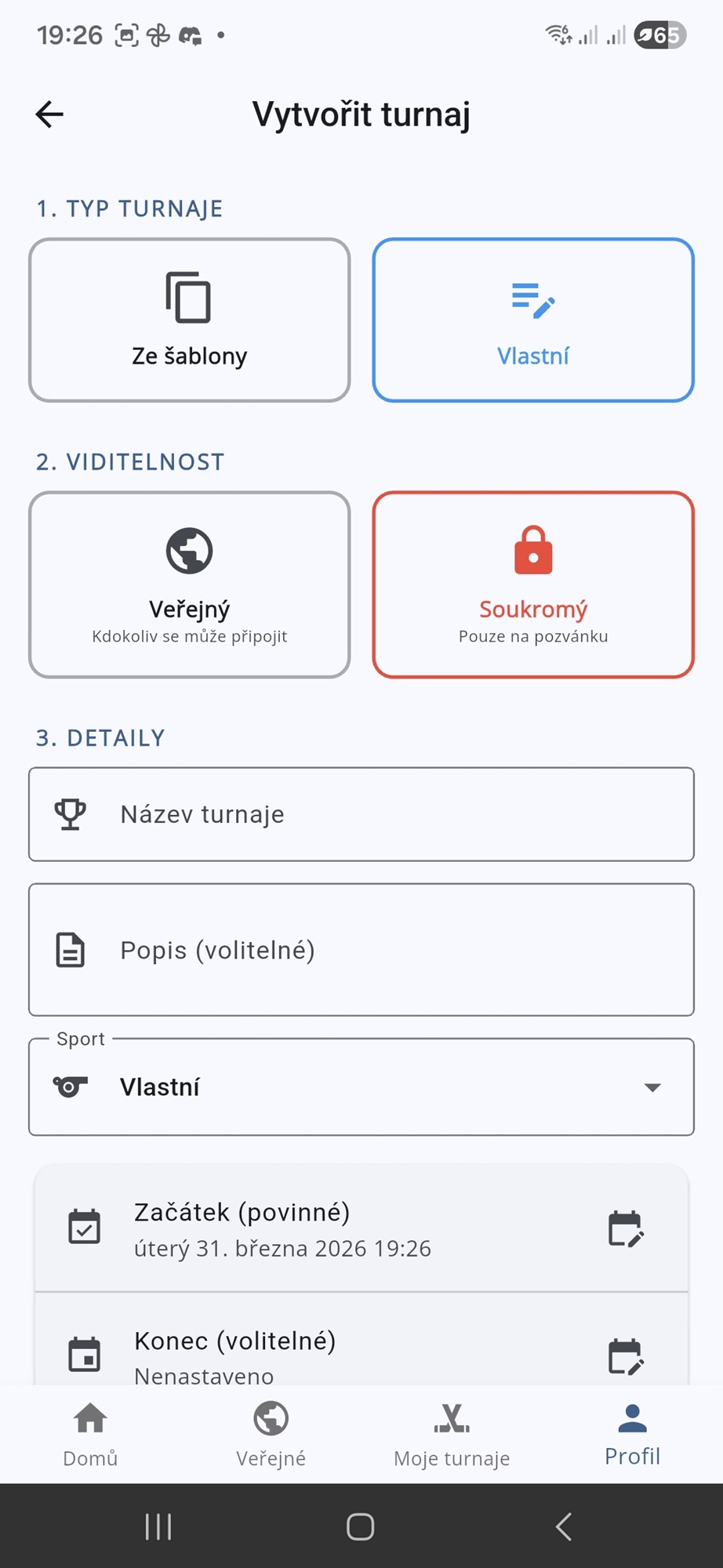
Create Tournament – type, visibility and details
Step 4a

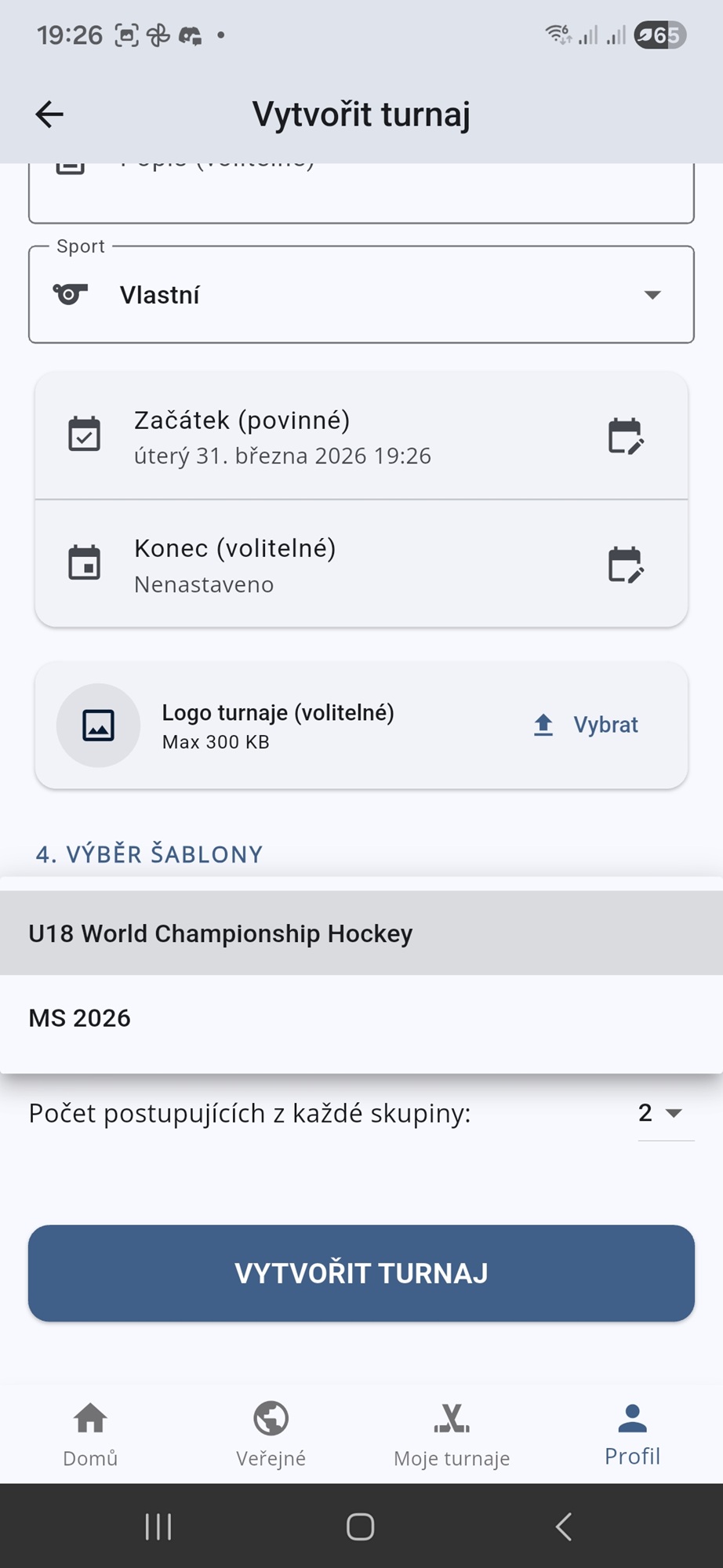
Creating from a template

A template includes ready-made teams, groups and a match schedule (e.g. a world championship).

  • Pick a template from the list (e.g. "U18 World Championship Hockey")
  • Set the number of qualifiers per group advancing to the playoffs
  • Confirm with Create Tournament – this consumes 1 template credit (unless you have Premium)
Create Tournament – template selection
Step 4b

Custom tournament – adding teams

For a custom tournament, you build the groups and teams yourself.

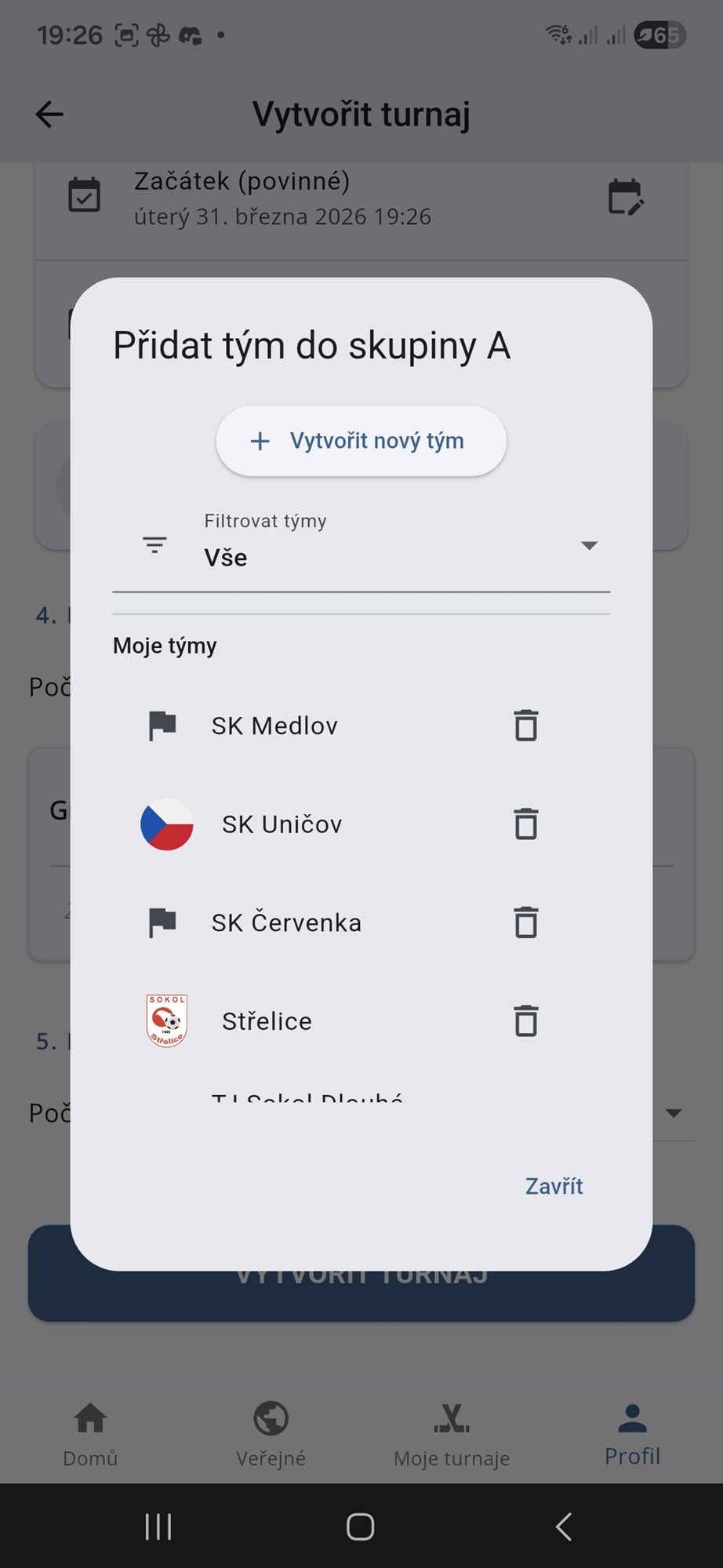
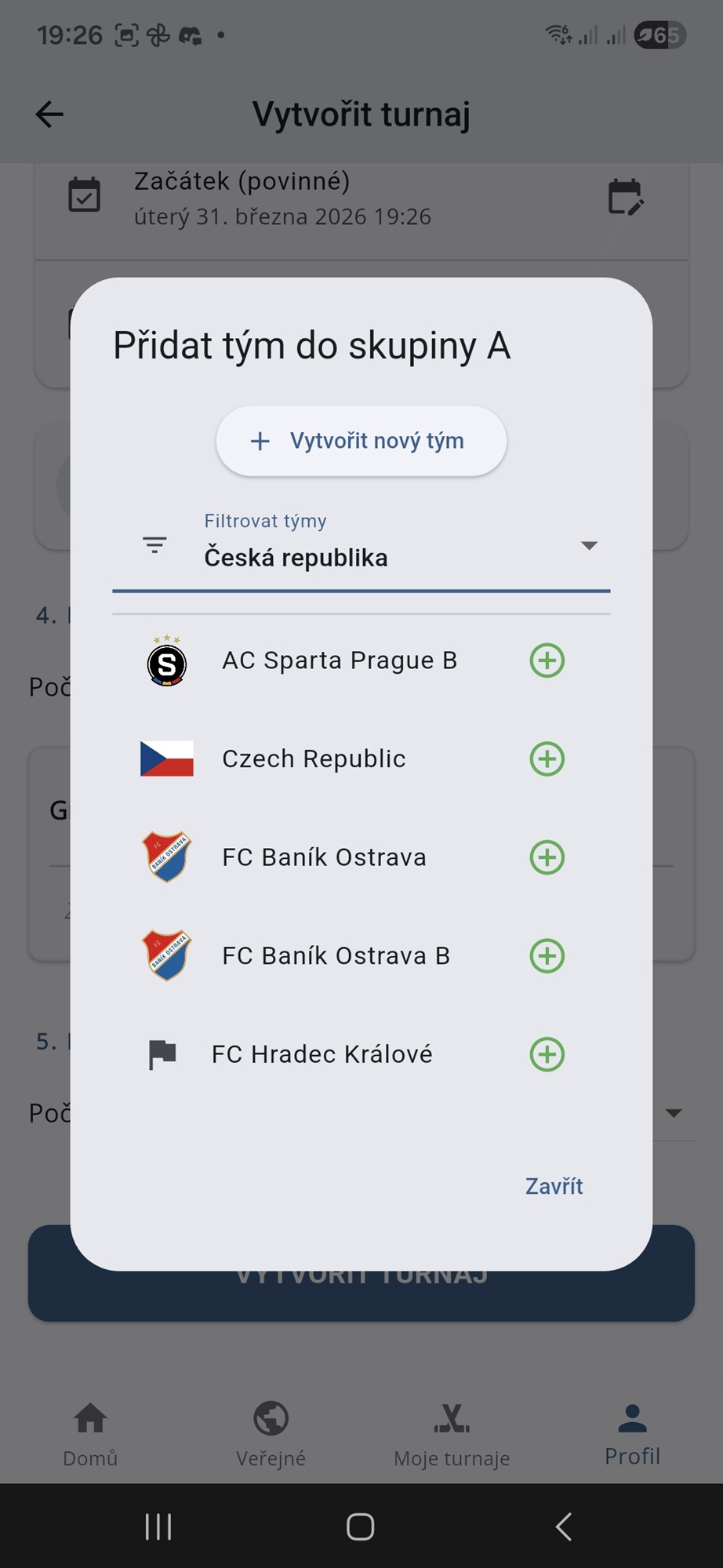
  • In each group, tap Add Team
  • Filter teams by category (My Teams, International, country) or browse All
  • If a team isn't in the database, create one via Create New Team
  • Every group must contain at least one team, otherwise the tournament can't be created
Add team to group – filter by country
Add team to group – team list
Step 5

Creating and sharing the tournament

After tapping Create Tournament, the app verifies your entitlements, consumes a Tournament Pass or template credit if needed, and the tournament is created. On the Overview tab you'll find a unique tournament ID – share it with players so they can join (required for private tournaments).

Editing

Managing and editing a tournament

As the creator, you can access management options via the three-dot (⋮) menu in the tournament detail screen.

  • Settings – edit the tournament's name, description, visibility and dates
  • Matches – add, edit or delete matches (date, time, team pairing, round)
  • Teams & groups – add or remove teams as needed
  • Playoff – set up elimination rounds and match pairings
  • Archiving – archive the tournament once it's finished
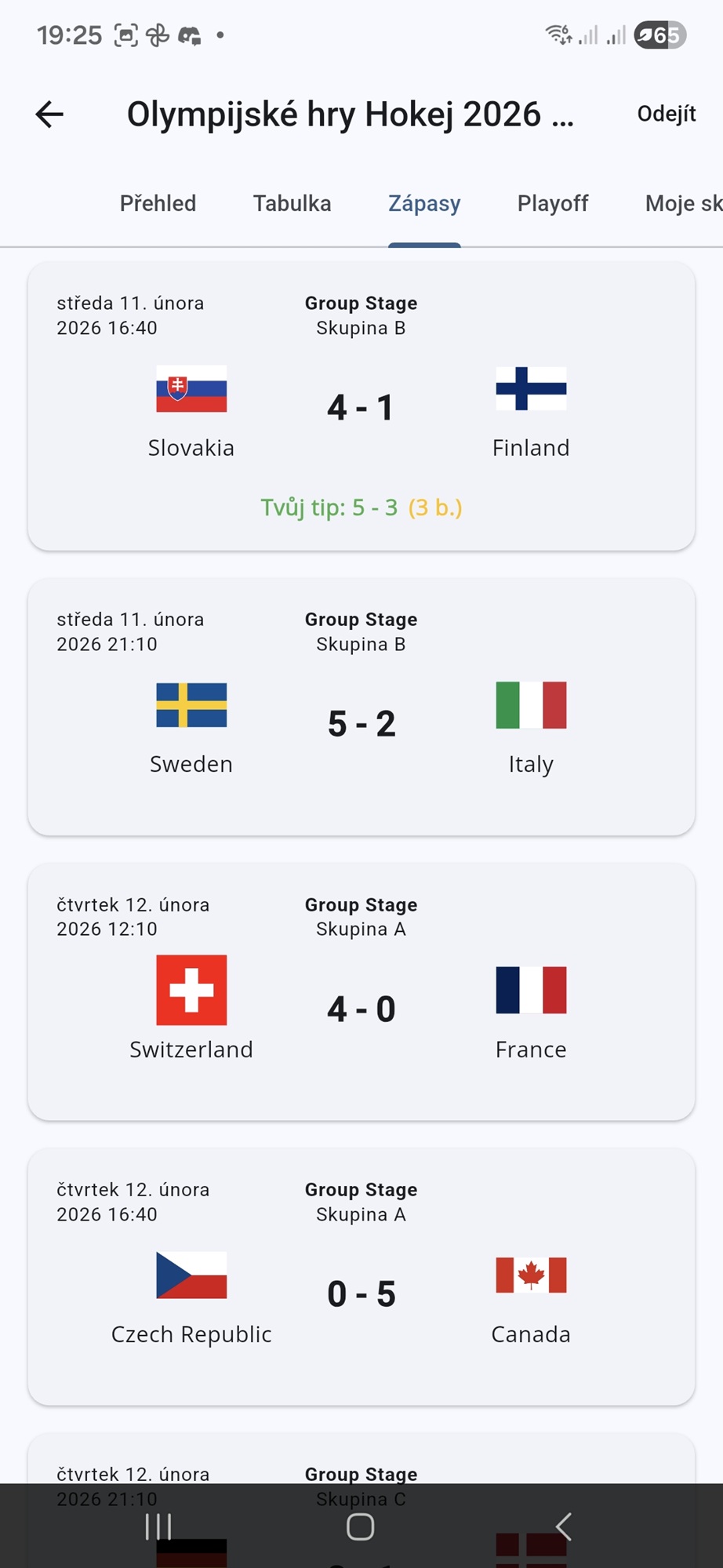
Tournament management – matches and results
Most important step

Entering results and recalculating points

Player points and group standings are calculated from the official results you enter for each match as the organizer.

How it works

  • Once you enter the official result of a match, the app automatically recalculates every player's points for that match
  • For group-stage matches, the group standings are also recalculated automatically
  • If you later fix a result (typo, later change, wrong result entered) or delete a match, the app recalculates the affected data again

⚠️ Always run a manual recalculation after fixing a result

After fixing a wrong result, deleting a match, or making bulk edits to several matches, we recommend running a full manual recalculation so the leaderboard, player points and group standings exactly match the current results. Without it, players may temporarily see an outdated ranking or point total.

1

Open the tournament menu

In the tournament detail screen, tap the three-dot menu in the top right corner.

2
🔄

Recalculate Points & Standings

Select this option – you'll see a "Recalculating…" message.

3

Recalculation complete!

Once finished you'll see a confirmation and every point total and standing is up to date again.

Ready to create your tournament?

Download CupNation, grab Premium or a Tournament Pass, and set up your own competition today.